

Introduction
Losing metadata after exporting images is a frustrating issue—especially when working with large batches. In one recent project, over 1,000 JPG images were edited and exported, but due to a missed setting (“save all metadata”), all files lost critical EXIF data from the original RAW (NEF) files.
This meant:
- No shooting date
- No camera or lens information
- No settings like ISO, aperture, shutter speed
As a result, the photographer couldn’t import the images into their system properly. With only 23 hours left before deadline, re-editing everything was not an option.
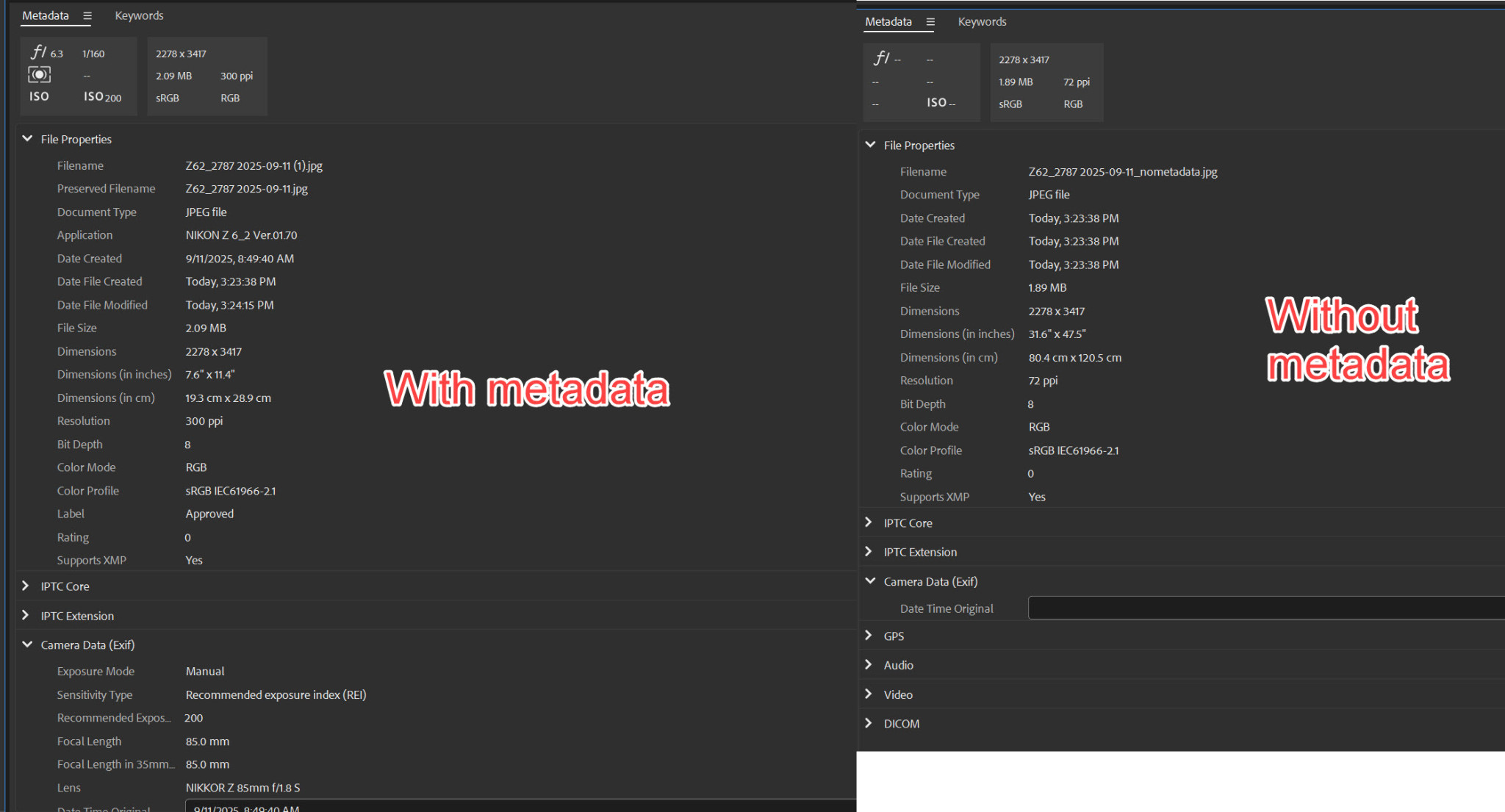
With & Without metadata
This guide shows you exactly how to restore metadata in JPG files using ExifTool—quickly and in bulk.
Why Metadata Is Missing After Export

missing metadata JPG after export example
Metadata is often stripped when exporting images if the correct settings aren’t enabled.
Common causes:
- Export setting not set to “All Metadata”
- Using software that removes EXIF data by default
- Compression or optimization tools stripping metadata
Problems Caused by Missing EXIF Data
Missing metadata can break your entire workflow:
- Images cannot be imported into Lightroom or DAM systems
- Files lose chronological order
- Camera/lens data is unavailable
- Difficult to manage large photo collections

problems caused by missing EXIF data in workflow
Best Solution: Restore Metadata Using ExifTool
ExifTool is a powerful, free command-line tool that allows you to read, write, and copy metadata across files.

using exiftool to restore metadata JPG
Key advantages:
- Supports JPG, NEF, PNG, MP4, and more
- Works on Windows, macOS, Linux
- Handles batch processing effortlessly
- Restores complete metadata without affecting image quality
Step-by-Step Guide to Restore Metadata from RAW to JPG
1. Prepare Your Files
- Place RAW files (NEF) and JPG files in separate folders
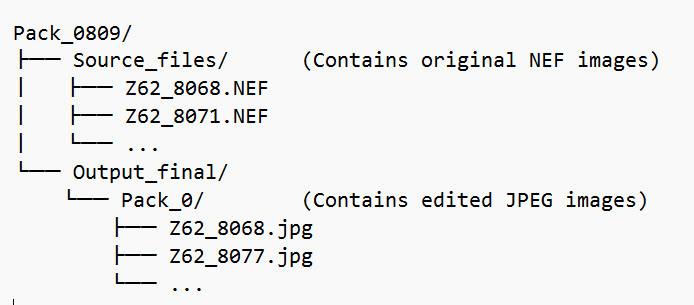
Folder structure
- Ensure filenames match exactly
Example:
DSC_0001.NEF → DSC_0001.JPG
👉 If needed, use batch rename tools (Ctrl+M) to align filenames.
2. Install ExifTool
Download ExifTool from the official website.
Windows:
- Place
exiftool(-k).exein your working folder - Or add it to your system PATH
macOS / Linux:
brew install exiftool
3. Run Batch Script (Windows)
Create a .bat file:
@echo off
setlocal enabledelayedexpansion

set RAW_DIR=C:\Users\Admin\Downloads\Pack_0809\Source
set JPG_DIR=C:\Users\Admin\Downloads\Pack_0809\Output_final\Pack_0

for %%f in ("%JPG_DIR%\*.jpg") do (
    set filename=%%~nf
    echo Copying metadata for: !filename!.jpg
    exiftool -tagsFromFile "%RAW_DIR%\!filename!.NEF" -overwrite_original "%JPG_DIR%\!filename!.jpg"
)

echo Metadata copy completed!
pause
4. Run Script (macOS / Linux)
Save as .sh file:
#!/bin/bash

RAW_DIR="/Users/admin/Downloads/Pack_0809/Source"
JPG_DIR="/Users/admin/Downloads/Pack_0809/Output_final/Pack_0"

for jpg in "$JPG_DIR"/*.jpg; do
  base=$(basename "$jpg" .jpg)
  echo "Copying metadata for: $base.jpg"
  exiftool -tagsFromFile "$RAW_DIR/$base.NEF" -overwrite_original "$jpg"
done

echo "Metadata copy completed!"
How to Verify Metadata After Restoration

verify restored metadata in lightroom
After running the script:
- Open images in Adobe Lightroom or Adobe Bridge
- Check:
- Capture date
- Camera model
- Lens information
- Exposure settings
If everything appears correctly → metadata has been restored successfully.
Results
- Setup time: ~10 minutes
- Processing time: ~3 minutes for 1,000+ images
- Outcome: 100% metadata restored
The photographer was able to:
- Import files immediately
- Continue workflow without disruption

before after metadata restoration result
Key Takeaways
- Always enable “All Metadata” when exporting JPG files
- ExifTool is the fastest way to restore missing metadata in bulk
- Matching filenames between RAW and JPG is critical
- This method works even under tight deadlines
FAQ
Why is metadata missing after exporting JPG?
Because the export settings didn’t include metadata or the software removed it by default.
Can I restore EXIF data after editing photos?
Yes. You can copy metadata from RAW files to JPG using ExifTool.
Does restoring metadata reduce image quality?
No. Metadata editing does not affect image pixels or quality.
Can I process multiple images at once?
Yes. ExifTool supports full batch processing, even for thousands of files.
Conclusion
If you’re dealing with missing metadata in JPG files, especially after photo editing, ExifTool is a reliable and efficient solution. Instead of reprocessing hundreds or thousands of images, you can restore full EXIF data in just minutes.
For photographers, editors, and agencies handling large volumes of images, this is an essential workflow to save time and avoid costly mistakes.
Pro tip: Add this process to your internal SOP so your team can quickly resolve similar issues in the future.