
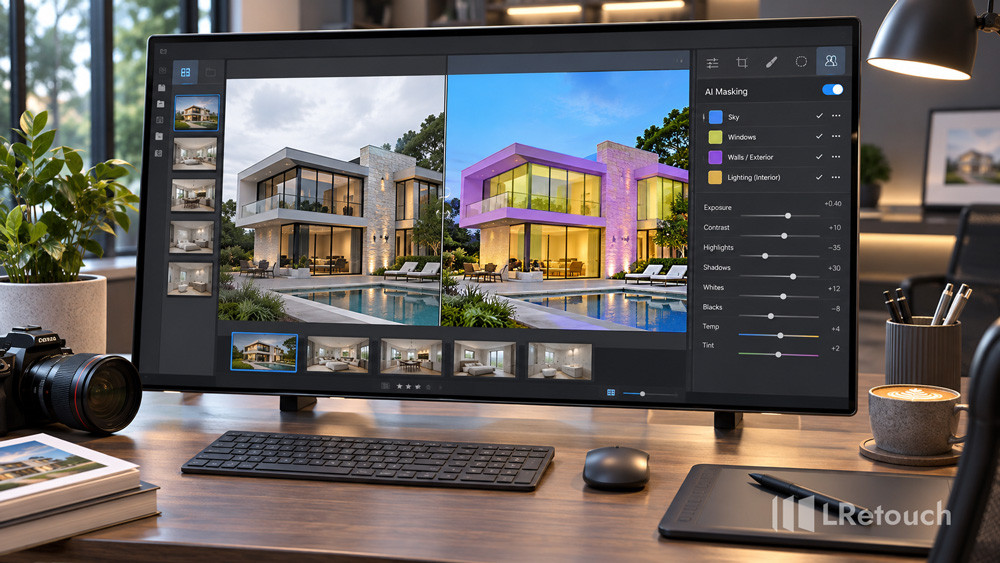
Lightroom AI masking real estate workflows help editors enhance property photos faster. These tools isolate skies, walls, windows, and other areas for precise adjustments. Real estate editors can improve image quality while maintaining natural details and consistent results.
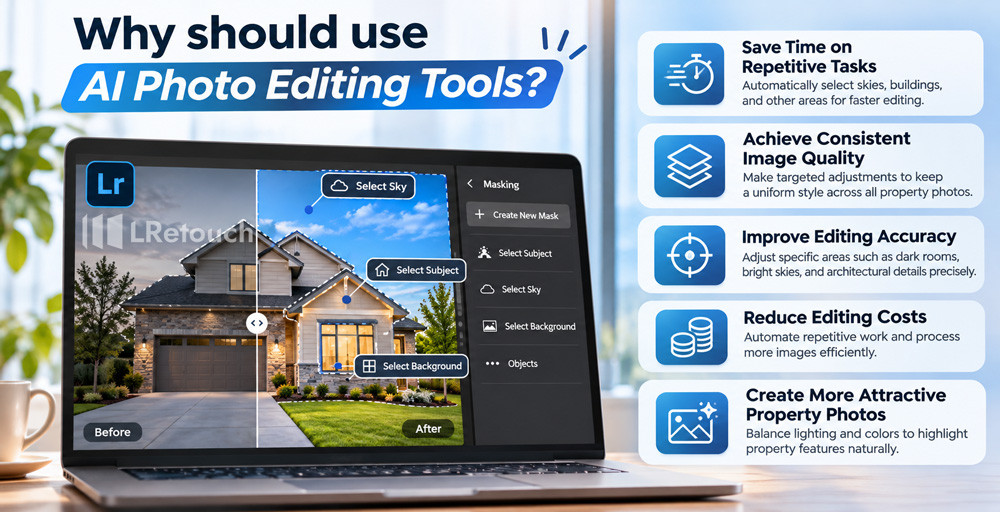
Why should use AI Photo Editing tools?
Real estate photography requires speed, precision, and consistency. AI photo editing tools help editors process property photos faster while maintaining professional quality. They automate repetitive tasks and simplify local adjustments.
- Save Time on Repetitive Tasks
AI masking automatically selects skies, buildings, and other image areas. This helps speed up editing workflow and reduces manual adjustments across multiple photos.
- Achieve Consistent Image Quality
Editors can adjust exposure, colors, and brightness in specific areas. These targeted edits help maintain a consistent style across an entire property gallery.
- Improve Editing Accuracy
AI masking allows precise adjustments without affecting the whole image. Editors can brighten dark rooms, reduce sky highlights, and enhance architectural details. Manual refinement may still be necessary for complex edges.
- Reduce Editing Costs
AI tools reduce repetitive work and help studios process more images efficiently. Automated interior retouching tools also free up time for complex edits and quality checks.
- Create More Attractive Property Photos
Balanced lighting and natural colors make property photos more appealing. With Lightroom AI masking real estate techniques, editors can enhance important details while preserving the property’s original appearance.
Why should use AI Photo Editing tools?
Lightroom AI masking real estate: A Perfect Tool
Lightroom’s AI masking features have transformed many real estate editing workflows. They help editors isolate image elements and adjust them independently.
The masking panel includes several useful options. Available features depend on the Lightroom version and editing environment.
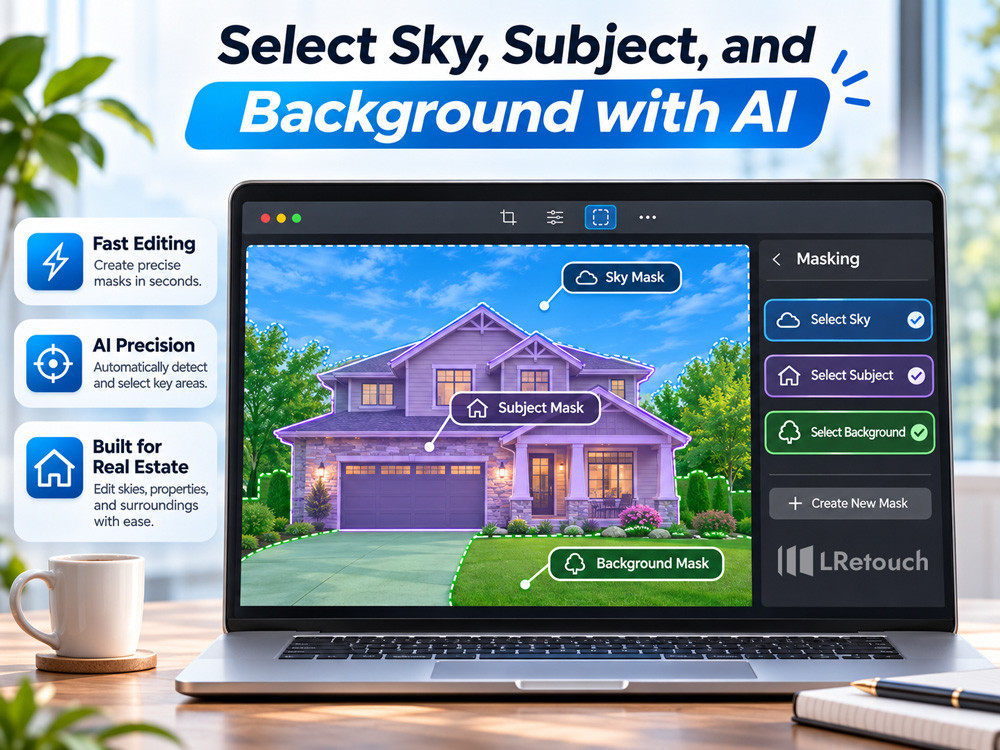
Select Sky, Subject, and Background with AI
The Select Sky feature identifies the sky in exterior photographs. Editors can reduce highlights, adjust white balance, or enhance blue tones.
The Select Subject feature identifies prominent subjects in an image. It can help isolate furniture, decorative elements, or other recognizable objects.
Background selection can separate the main subject from surrounding areas. This helps editors make targeted adjustments without changing the entire photograph.
Select Sky, Subject, and Background with AI
These AI Lightroom capabilities for selecting sky, subject, and background reduce the need for manual masking. Editors can also refine selections with brushes, gradients, or additional masks.
For example, an exterior photo may contain a bright sky and a dark building. An editor can lower sky highlights and brighten the building separately. This creates a more balanced result.
Fix Blown Out Windows in Photography
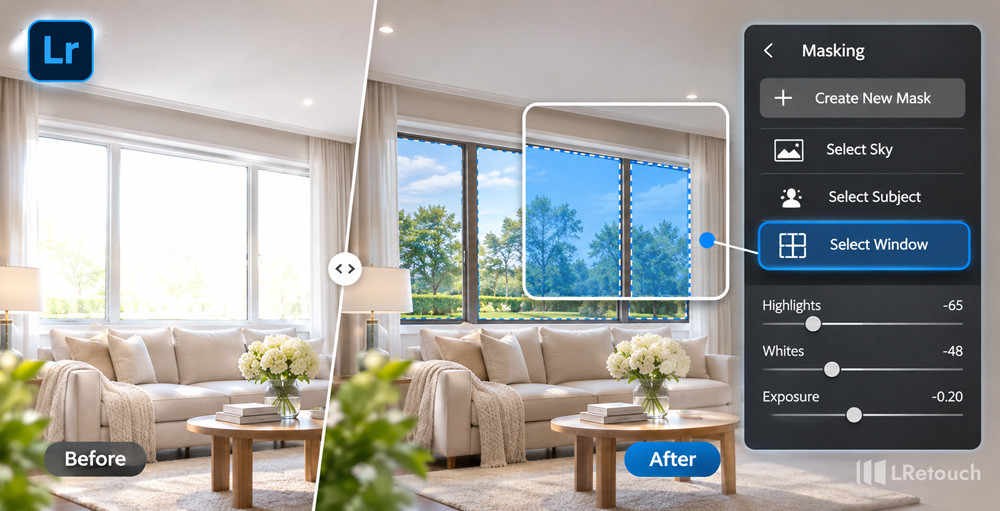
Bright windows often lose detail in real estate photos. To fix blown out windows photography, editors can use local masks to reduce highlights and whites. This helps balance indoor and outdoor exposure.
Lightroom masking helps editors target window areas. They can lower highlights and whites while preserving the room’s overall exposure.
For difficult images, combine local adjustments with global exposure and highlight recovery. RAW files usually provide more flexibility than heavily compressed JPEGs.
Fix Blown Out Windows in Photography
However, completely clipped highlights may contain no recoverable detail. AI masking cannot recreate information that the camera never captured.
For severe exposure differences, editors may need bracketed exposures and HDR blending. This approach combines multiple exposures to preserve interior and exterior details.
Enhance Interior Lighting and Colors
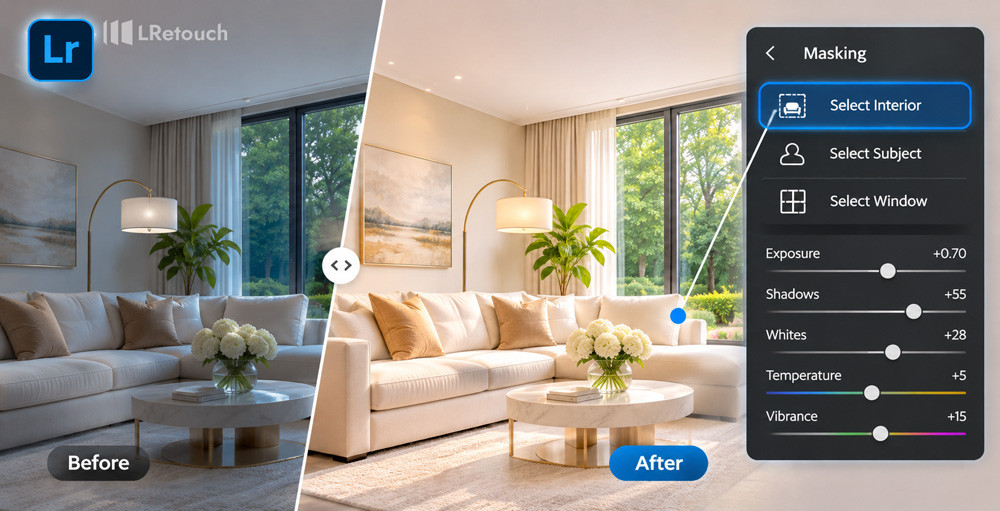
Interior photos often contain mixed lighting from windows, ceiling lights, and lamps. These sources can create uneven brightness and inconsistent color temperatures.
AI masking helps editors target specific areas. They can brighten dark corners, reduce excessive warmth, or improve wall brightness.
Enhance Interior Lighting and Colors
Automated interior retouching tools can also support more efficient local corrections. Editors should avoid excessive saturation and unnatural color shifts.
For example, a living room may have warm artificial lighting. An editor can cool selected areas while preserving the warmth of wooden furniture.
Improve Exterior Photos
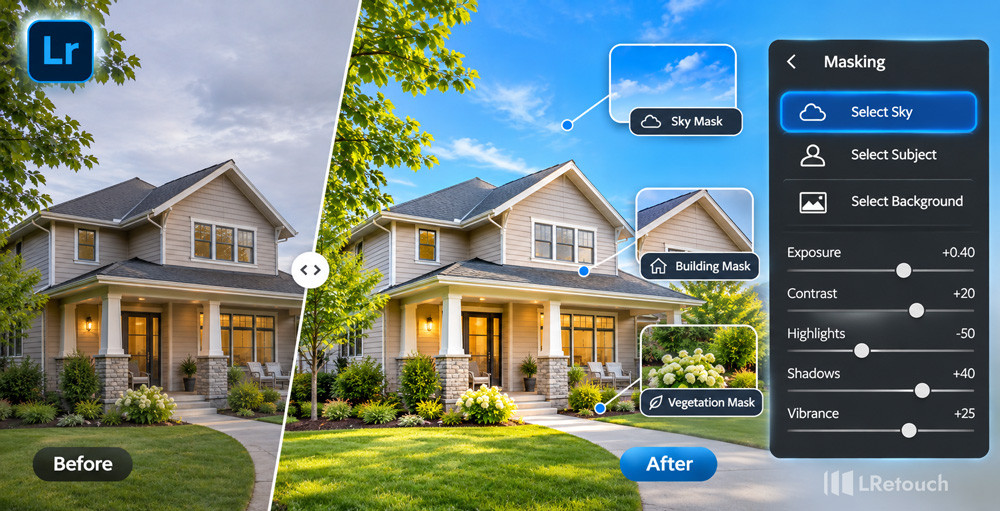
Exterior images often include buildings, vegetation, driveways, skies, and water. Each element may require different adjustments.
Lightroom’s masking tools can help isolate these areas. Depending on the available detection options, editors can target architecture, vegetation, natural ground, or artificial ground.
Improve Exterior Photos
They can brighten the building without affecting the sky. They can also enhance grass and trees while keeping exterior walls neutral.
These adjustments improve visual balance without making the property look unrealistic.
Lightroom vs. Photoshop for Real Estate
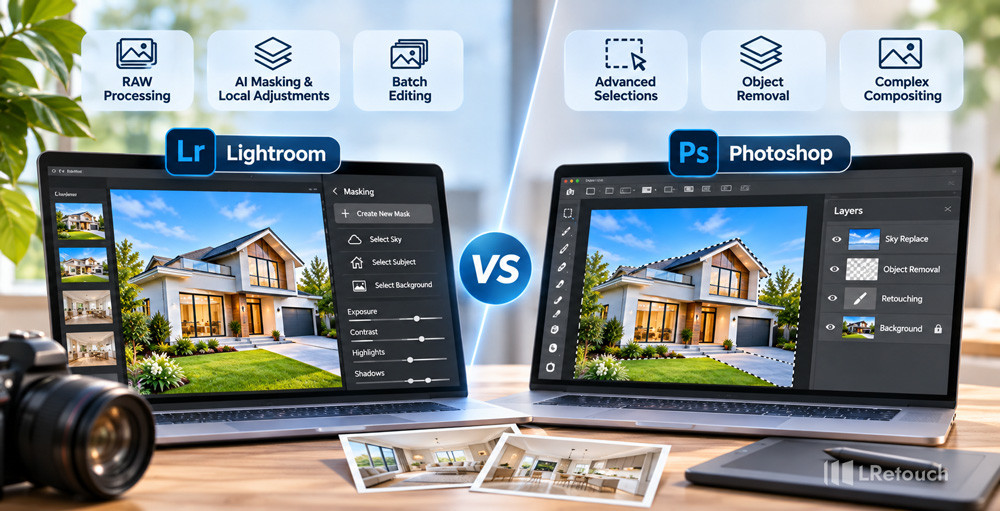
Lightroom vs Photoshop real estate editing depends on the task. Lightroom excels at RAW processing, color correction, AI masking, and batch editing. Photoshop offers advanced layering, detailed object removal, and complex image compositing.
| Feature | Lightroom | Photoshop |
| AI masking | Fast selections and local adjustments | Advanced selections and layered editing |
| Batch editing | Excellent for applying consistent settings | Possible, but often requires more setup |
| Exposure correction | Strong RAW and tonal adjustments | Advanced compositing and pixel-level control |
| Object removal | Suitable for supported cleanup tasks | More detailed retouching options |
| HDR workflows | Supports real estate exposure blending | Offers advanced compositing flexibility |
| Best use | High-volume photo editing | Complex retouching and image manipulation |
For most standard property galleries, Lightroom offers an efficient starting point. Photoshop becomes useful when an image needs detailed object removal, precise compositing, or complex perspective corrections.
Many professional editors use both programs. Lightroom handles color correction and batch processing. Photoshop manages edits that require more detailed control.
Lightroom vs. Photoshop for Real Estate
Common Real Estate Workflows
Lightroom AI masking real estate workflows help editors handle common challenges efficiently. These techniques improve image quality while maintaining a consistent style across property listings.

Common Real Estate Workflows
1. Correct Backlit or Underexposed Exteriors
Bright skies can make buildings appear too dark. Create a Sky mask to reduce highlights and balance the background. Then select the building and increase exposure or shadows. Refine mask edges to preserve natural details around rooflines and trees.
2. Balance Interior Exposure
Interior photos often contain dark corners and bright windows. Use local masks to reduce window highlights and brighten shadow areas. Adjust white balance to maintain natural colors. For extreme exposure differences, consider HDR blending to recover more details.
3. Synchronize Edits Across Multiple Photos
Batch editing helps maintain consistent results across property galleries. Edit a representative photo first, then synchronize suitable settings with similar images. Check AI masks after synchronization, as some selections may require recalculation or refinement.
4. Remove Distracting Objects
Unwanted items, such as trash cans and stray wires, can distract viewers. Use Lightroom’s Remove or Generative Remove features when available. Review the results carefully for unnatural textures or visible artifacts. Complex edits may require Photoshop.
5. Apply Final Quality Checks
Review every image before exporting. Check window edges, furniture boundaries, rooflines, and reflective surfaces. Look for unnatural colors, halos, and uneven brightness. Ensure vertical lines remain straight and property details look realistic.
Finally, use consistent export settings for resolution, color space, and file format. These checks help deliver professional, cohesive images for real estate listings.
Conclusion
Lightroom AI masking real estate workflows help editors improve speed, precision, and consistency. With careful masking and quality control, professionals can create natural, polished property photos efficiently.